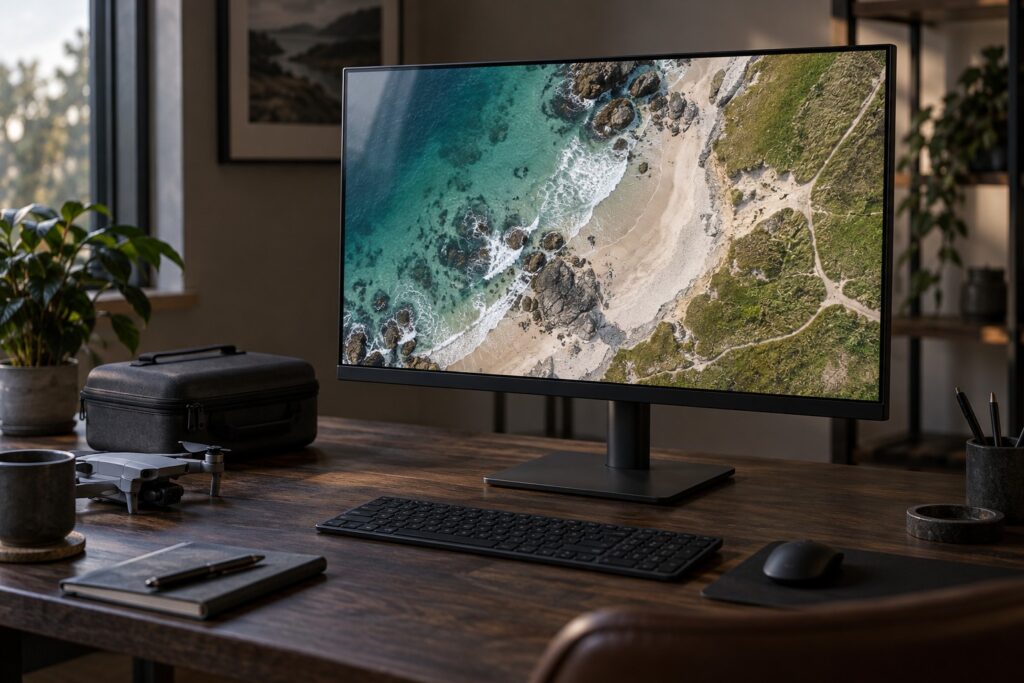
For regular 4K detail checks, I would choose the 27-inch BenQ PD2705U. Its 3840 × 2160 panel gives you a sharper view of footage and text than the PD2705Q’s 2560 × 1440 panel. The Q is a useful lower-resolution option when you mainly need a comfortable SDR editing workspace.
Check the BenQ PD2705U on Amazon UK for frequent work on 4K footage, stills and text overlays. Compare the PD2705Q on Amazon UK when 1440p suits your editing and the saving helps fund storage, a comfortable desk or colour-management tools.
The specifications that affect this decision
| Specification | PD2705Q | PD2705U |
|---|---|---|
| Panel | 27-inch IPS | 27-inch IPS |
| Native resolution | 2560 × 1440 | 3840 × 2160 |
| Pixel density | 109ppi | 163ppi |
| Quoted gamut coverage | 100% sRGB; 100% Rec.709 | 99% sRGB; 99% Rec.709 |
| Maximum refresh rate | 60Hz | 60Hz |
| USB-C power delivery | 65W on UK specification page | 65W on UK specification page |
Sources: BenQ PD2705Q UK specifications and PD2705U UK specifications. Some marketing image descriptions refer to 60W; the dedicated UK specifications list 65W. Confirm the supplied unit’s documentation if laptop charging is central to your purchase.
What 4K changes when the footage is already 4K
A 3840 × 2160 frame contains 8,294,400 pixels. A 2560 × 1440 panel contains 3,686,400. The ratio is 2.25 to one. On equal-size screens, the 4K panel has 1.5 times as many pixels along each dimension, which is why its pixel density is higher.
That extra detail helps you inspect roof tiles, branches against the sky, railings and sharpening artefacts. At 100% view, look for focus, compression and motion blur as well as overall sharpness.
A 4K frame can map one source pixel to one display pixel on a 3840 × 2160 screen only when the image has that full pixel area available. A preview panel surrounded by a timeline, bins and colour controls is smaller. Use an appropriate full-screen or 100% inspection view when judging fine detail.
A 1440p display can still inspect part of a 4K frame at 100%: you pan around the enlarged image rather than seeing the whole frame at once. That is acceptable for occasional checks. It becomes more tedious when fine-detail review is a routine part of every delivery.
Scaling changes usable space, not panel resolution
Use operating-system scaling to make text and menus comfortable on a 4K panel. Larger interface elements use more of the available workspace, so try a scale that suits your eyesight and desk distance.
| Scale factor | Arithmetic equivalent | Planning implication |
|---|---|---|
| 100% | 3840 × 2160 | Most logical space; text may be too small at a normal desk distance |
| 150% | 2560 × 1440 | A useful comparison with an unscaled QHD workspace |
| 200% | 1920 × 1080 | Larger interface; less room for panels |
The table divides the panel dimensions by the scale factor to illustrate logical workspace. Applications handle scaling differently; check the size of your timeline, preview and controls in the editor you use.
Set up colour consistently
The quoted 99% and 100% figures describe colour-gamut coverage. For editing, also look at colour accuracy, screen uniformity and how your software interprets the footage. That one-percentage-point difference is a minor part of this buying decision.
For SDR work, identify the output colour space your client or platform needs. Set the source interpretation, editing pipeline and viewing setup to match it, including the application’s settings when using the monitor’s Rec.709 mode.
For the display setup itself, follow PC Builders Guide’s monitor calibration and profiling guide, covering room lighting, measurement and checking the colour profile used by your computer.
Adobe distinguishes a sequence’s working colour space from its output colour space, with the latter governing monitoring and export. Its current Premiere colour-management overview explains the separation. The output-space guide lists Rec.709 alongside HDR choices and describes matching an external video-output display to the sequence output.
For log or HLG clips, identify the recording mode and apply the appropriate colour transform once. If the editor converts it automatically, check that you are also using the intended output and display settings before adding a manual conversion.
Choose these monitors for SDR editing
BenQ lists HDR10 input and a 350-nit HDR peak for the PD2705U. I would choose between these models for SDR editing. For critical HDR mastering, specify the required brightness, black level, colour reproduction and monitoring path, then choose a display validated for that work.
Check the connection and the room before upgrading
- Video output: confirm that the computer, dock, cable and selected input support the resolution and refresh rate you plan to use. Check that the USB-C port supports video output.
- Laptop power: compare the monitor’s available charging power with the laptop’s needs under editing load. A one-cable connection can be convenient without replacing the laptop supply in every workload.
- Viewing conditions: arrange the screen to avoid glare and keep room lighting reasonably consistent. A changing reflection makes meaningful comparisons harder.
- Display settings: avoid evaluating a colour-critical edit while a night-time colour shift or an unrelated vivid preset changes the image.
- Storage: identify whether slow media access is the real source of frustration. A faster footage drive can help if media access is holding up the edit. Our drone-footage SSD comparison helps identify the storage bottleneck.
Which one fits your drone work?
Choose the PD2705U when frequent 4K detail checks and sharper interface rendering justify the extra cost at your preferred scaling. Choose the PD2705Q when 1440p is comfortable, full-frame pixel-level checks are occasional, and the saving addresses a more pressing workflow need.
Once you’ve chosen the resolution that suits you, compare the PD2705U’s current Amazon UK offer with the PD2705Q. Check the exact suffix, supplied cables, UK warranty and returns before ordering.
For aerial work that will be edited for a brand or property client, our marketing and media aerial-imaging page shows the kinds of finished outputs the capture-to-edit workflow needs to support.