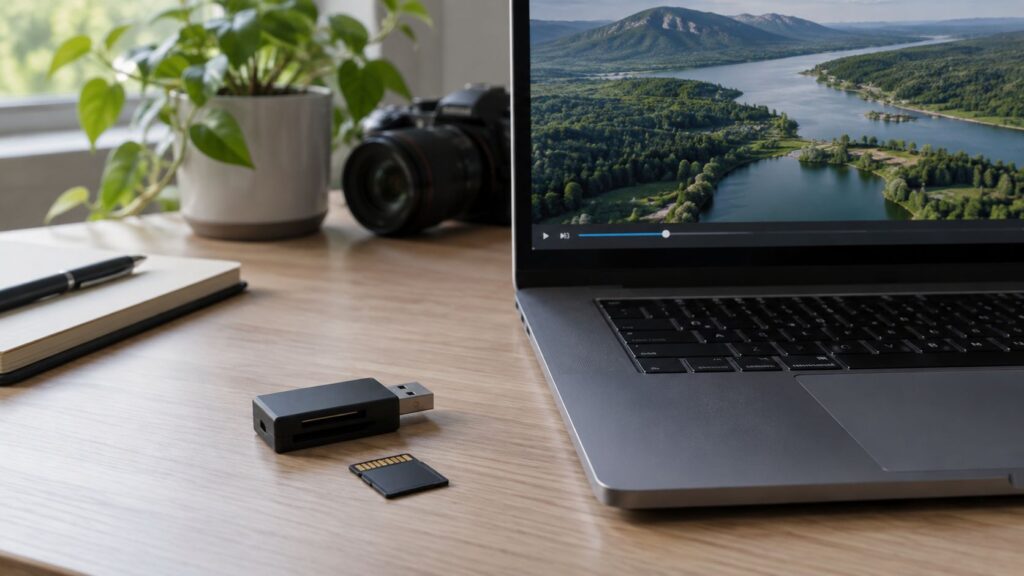
A USB 3 card reader is a useful upgrade if importing drone footage keeps you waiting. Match it to the card you own: UHS-I cards use the UHS-I interface, while a UHS-II card and reader together offer a faster transfer route.
For a UHS-I drone card, I recommend a compact USB 3 reader such as the SanDisk MobileMate USB 3.0 on Amazon UK. Choose the Kingston MobileLite Plus MLPM on Amazon UK if you use UHS-II microSD cards and have a USB 3 port. Both readers have USB-A plugs; USB-C-only computers need a suitable adapter or a USB-C reader.
| Your setup | Sensible choice | Why |
|---|---|---|
| UHS-I microSD, USB 3 port | SanDisk MobileMate USB 3.0 | Matches the UHS-I card interface. |
| UHS-II microSD, USB 3 port | Kingston MobileLite Plus MLPM | Supports UHS-II and remains compatible with UHS-I cards. |
| Only USB-C sockets | Choose a verified USB-C reader or a suitable USB-C adapter | Both named readers have USB-A plugs. |
| USB 2 port or slow destination drive | Fix that bottleneck first | Check the port or destination drive before replacing the reader. |
Read the card labels
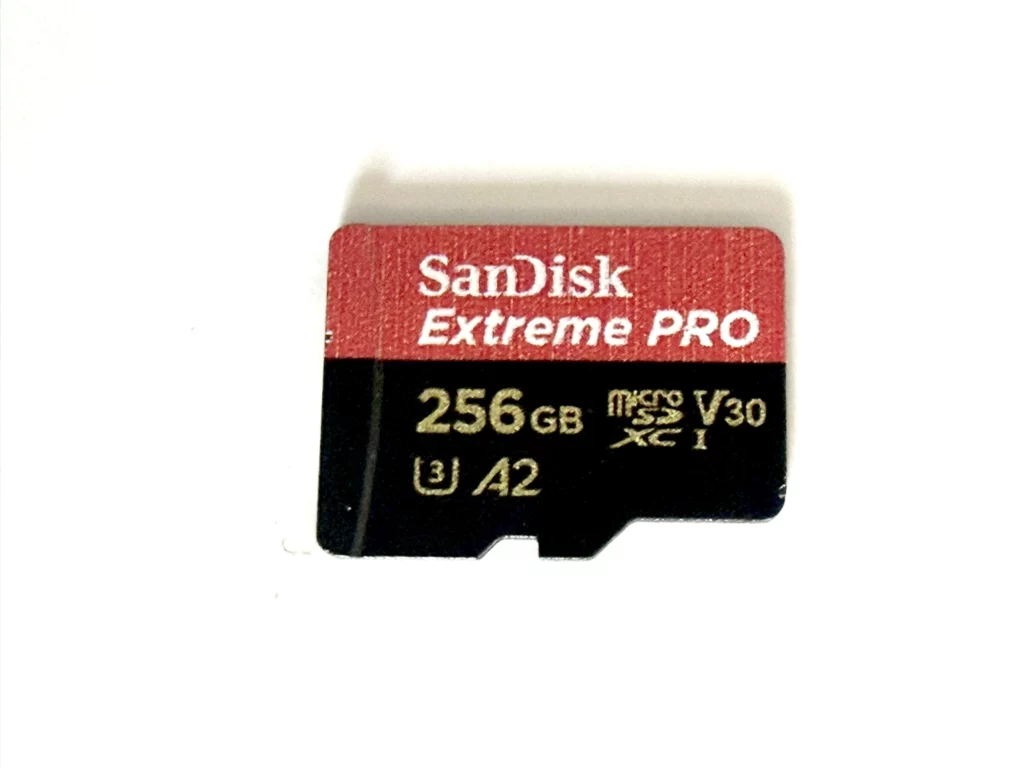
The Roman numeral on a microSD card identifies its interface: UHS-I or UHS-II. V30 describes a different job: a minimum sustained write speed of 30 MB/s under the standard’s conditions, relevant when recording video. For importing, look at the card’s read performance and interface. The SD Association speed-class definitions explain these markings; use your exact drone’s supported-card list to choose the recording card.
UHS-II cards have a second row of contacts, used by a matching UHS-II reader. Kingston’s reader also accepts UHS-I cards, running them through their UHS-I interface. SanDisk’s MobileMate uses UHS-I, including when a compatible UHS-II card falls back to that mode.
Would a faster reader actually save you time?
For a sense of the time involved, a 100 GB copy averaging 70 MB/s would take about 24 minutes; at 140 MB/s, about 12 minutes. Calculate it as 100,000 MB divided by the average rate, then by 60. These are worked examples of whole-transfer rates: your card, port, files and destination drive set the rate you actually get.
With just 10 GB to copy, the same example saves roughly a minute. Regular 100 GB shoots make a faster card-and-reader combination more attractive. For an existing UHS-I card, check whether your present reader is USB 2.0: moving to USB 3 may be all you need.
The transfer chain: find its slowest link
microSD card → reader → USB port or hub → computer → destination drive
Check the USB port and hub first. A USB 3 reader connected through USB 2.0 runs at the slower connection’s speed. A busy or slow destination drive can also hold up the copy. With USB-C, look up the supported data rate as well as the connector shape.
To compare your options, copy the same representative folder from the same card to the same drive, changing one component at a time. Note the size and elapsed time. Restart between configurations and repeat the comparison with similar background activity to reduce the effect of caching. Use a folder like your usual shoots: thousands of small photographs take more per-file work than one large video.
Two readers with distinct jobs
SanDisk MobileMate USB 3.0: straightforward UHS-I imports
The MobileMate is a small USB-A, USB 3.0 UHS-I microSD reader for straightforward card imports. SanDisk quotes up to 170 MB/s with compatible SanDisk card technology and host hardware. Check the MobileMate on Amazon UK, or see SanDisk’s specifications for the supported setup.
If you later move to UHS-II cards for faster imports, you will also need a UHS-II reader to use their faster interface.
Kingston MobileLite Plus MLPM: for UHS-II cards
The Kingston MobileLite Plus MLPM is the more useful choice for UHS-II microSD cards, particularly for large regular imports. It has a USB-A plug, USB 3.2 Gen 1 and backward compatibility with UHS-I. Kingston’s specification gives the exact interface details.
Copy, check and back up your footage
- Copy the original files from the card to a clearly named project folder, preserving filenames and folder structure.
- Open a sample of the transferred clips and check their duration and playback. For valuable work, verify file integrity with checksums or your ingest software.
- Make a second copy on another drive or backup system before formatting the card.
- Only format in the drone after confirming both copies. Removing the card during an active transfer risks an incomplete import.
Choose portable storage for your copies that keeps up with your card and reader. Include a separate backup destination so you can clear the card once both copies are checked.
Which should you buy?
For a UHS-I card, check the SanDisk MobileMate as the straightforward USB 3 option. Buy the Kingston MobileLite Plus MLPM for a UHS-II card workflow. Match the connector to your computer and you’re ready to put the import routine above into practice.