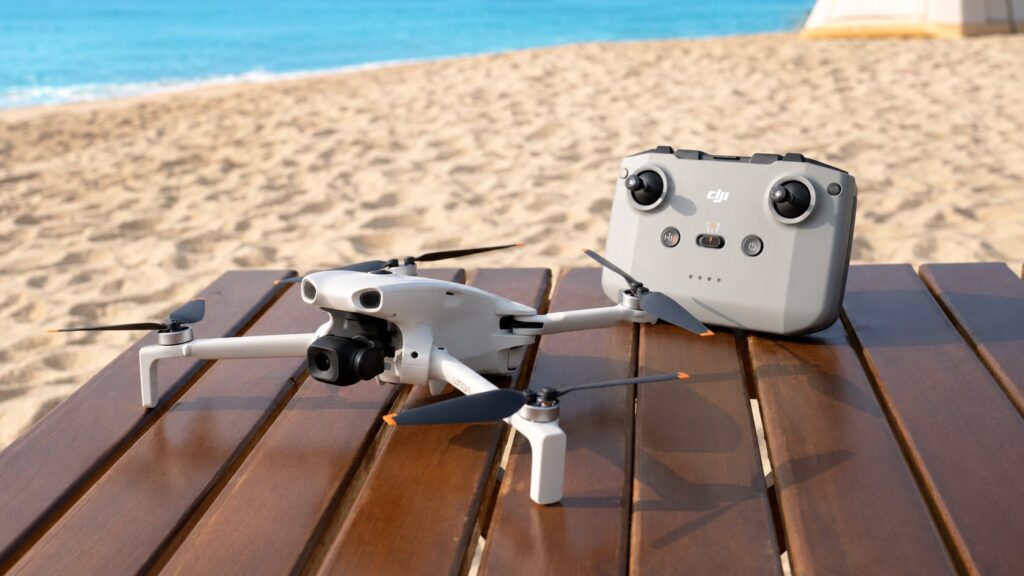
Get your DJI Lito ready at home: charge the aircraft and controller, activate them through DJI Fly, then record and transfer a short clip. The Lito 1 records to microSD; the X1 gives you 42GB of internal storage as well as a card slot.
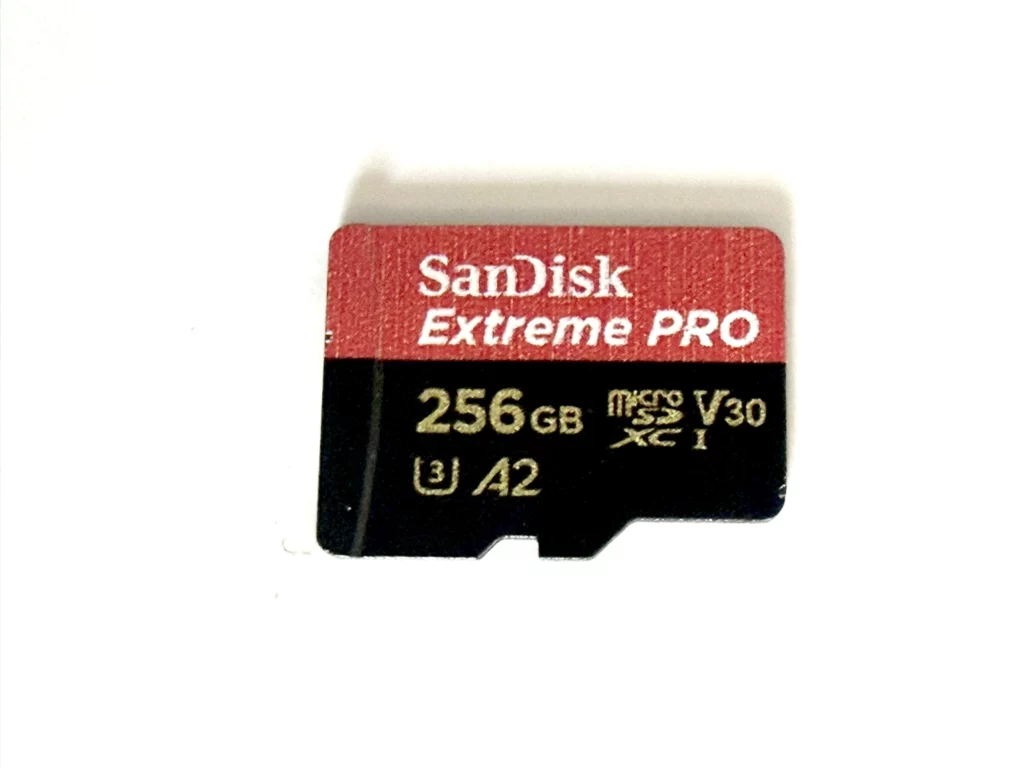
For either model, DJI lists the Lexar Silver Plus 256GB microSD card as a recommended option. For a multi-battery kit, a 65W USB-C PD charger is a useful choice. Look for its power on the port you will use and pair it with a suitable USB-C cable.
Charge the correct batteries with a suitable power supply
Use the battery and hub specified for your exact Lito model. DJI’s UK specifications recommend its 65W Portable Charger or another USB Power Delivery charger. To charge a battery through the aircraft, switch the aircraft off and connect its USB-C port to the charger.
The Lito hub’s parallel-charging feature has two conditions: USB PD power of at least 45W and batteries of the same model. Below 45W, the hub charges sequentially, starting with the battery at the highest charge level. With sufficient power, it can first bring batteries towards the same level before charging them together.
On a multi-port charger, another connected device can reduce the hub’s share of the power. Check the output allocation and, if needed, give the hub its own port with at least 45W available. Use a USB-C cable rated for that power.
DJI specifies a charging temperature of 5–40°C. Let warm batteries cool after flying, keep the charger and hub ventilated, and use the indicators and app to check when charging is complete.
The Lito 1 and Lito X1 UK specifications set out their charging requirements. The X1 manual explains the hub’s charging sequence.
Set up DJI Fly while you have internet access
For RC-N3, install DJI Fly on a compatible phone using DJI’s official download page. It also lists current device and operating-system requirements.
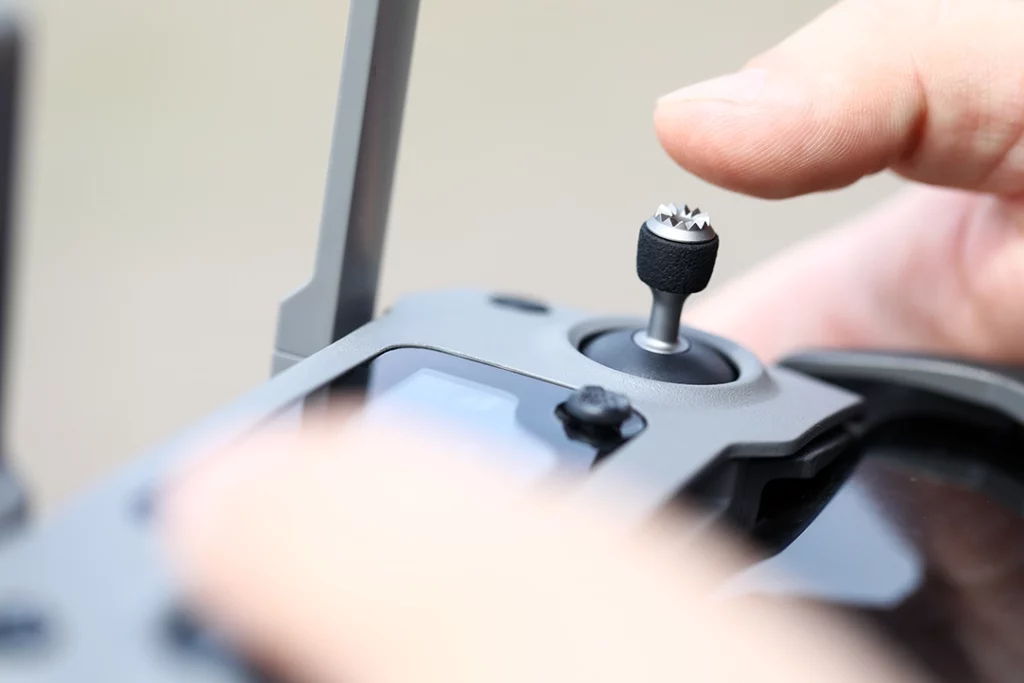
The RC 2 screen controller has DJI Fly installed. Charge it and complete activation with an internet connection. With either controller, follow the app’s pairing, activation and firmware prompts at home, with the aircraft safely stationary and the gimbal protector removed before powering it on.
Finish sign-in, firmware and cable checks before setting off. Confirm the app shows the camera view, battery information and expected storage. With RC-N3, secure the phone in its holder and leave enough slack in the connection cable.
Check the recording destination before the first clip
Lito 1: fit a supported microSD card with the aircraft switched off. It has no internal recording storage. Lito X1: check whether DJI Fly is set to internal storage or microSD, then check the free space on that destination.
DJI lists the Lexar Silver Plus and Kingston Canvas Go! Plus A2 V30 microSDXC ranges for both models in specified capacities. Our drone microSD guide explains what capacity and write-speed markings mean. An existing card is worth checking against the exact manufacturer list before replacing it.
To plan storage, a constant 100Mbps recording would use about 7.5GB in ten minutes: divide 100 megabits by eight, then multiply by 600 seconds. Your chosen mode sets the actual rate, so record a sample and use its size to estimate the space for your trip.
Normal mode is the straightforward starting choice if you want finished-looking footage with a simple edit. The X1’s D-Log M mode adds a colour-processing step; check that your editing software can open and transform the selected files before using it for an important outing.
For the Lito X1, use the ND-filter compatibility and strength guide when you are ready to control video shutter speed in bright light.
Complete one recording-and-transfer rehearsal
- With the aircraft stationary in a safe place, record a short clip in the mode you intend to use. You do not need to start the motors to check the recording workflow.
- Stop recording and check that the clip plays back.
- Transfer it using DJI QuickTransfer, a suitable USB data cable or a card reader for files recorded to microSD. Follow DJI’s instructions for the chosen route; its Lito guide describes USB connection with the aircraft powered off.
- Open the transferred file from the destination folder in your editing software. Check playback and colour handling.
- Make a second copy before clearing the card or internal storage.
Use a USB data cable for transfers; charging-only cables carry power alone. For microSD recordings, our card reader guide helps you match the reader to your card. Transfer X1 internal recordings through the aircraft using one of DJI’s supported methods.
DJI’s Lito beginner guide describes the available export methods. Choose the one that works with the computer or phone you will actually have on the trip.
Prepare an uncomplicated first outdoor flight
Choose an open, permitted location with dry weather and good visibility for your first flight. Both models need protection from rain. Keep clear of crowds, obstructions and restricted airspace, maintain direct visual line of sight and follow the CAA’s applicable height limit.
Check the current Flyer ID and Operator ID requirements before flying these camera drones. Read the CAA’s where-you-can-fly guidance for the location and operating conditions.
Before take-off, inspect the aircraft and propellers, remove the gimbal protector and confirm the app has recorded the correct Home Point after obtaining a suitable positioning signal. Know your return-to-home settings and choose a safe take-off surface; a landing pad can help keep loose debris away.
If an essential item is still missing, use the beginner accessories guide to separate useful purchases from optional extras. For an X1 kit still on your shopping list, compare the standard and Fly More bundles before buying a separate hub and batteries.